Clean the data before you import
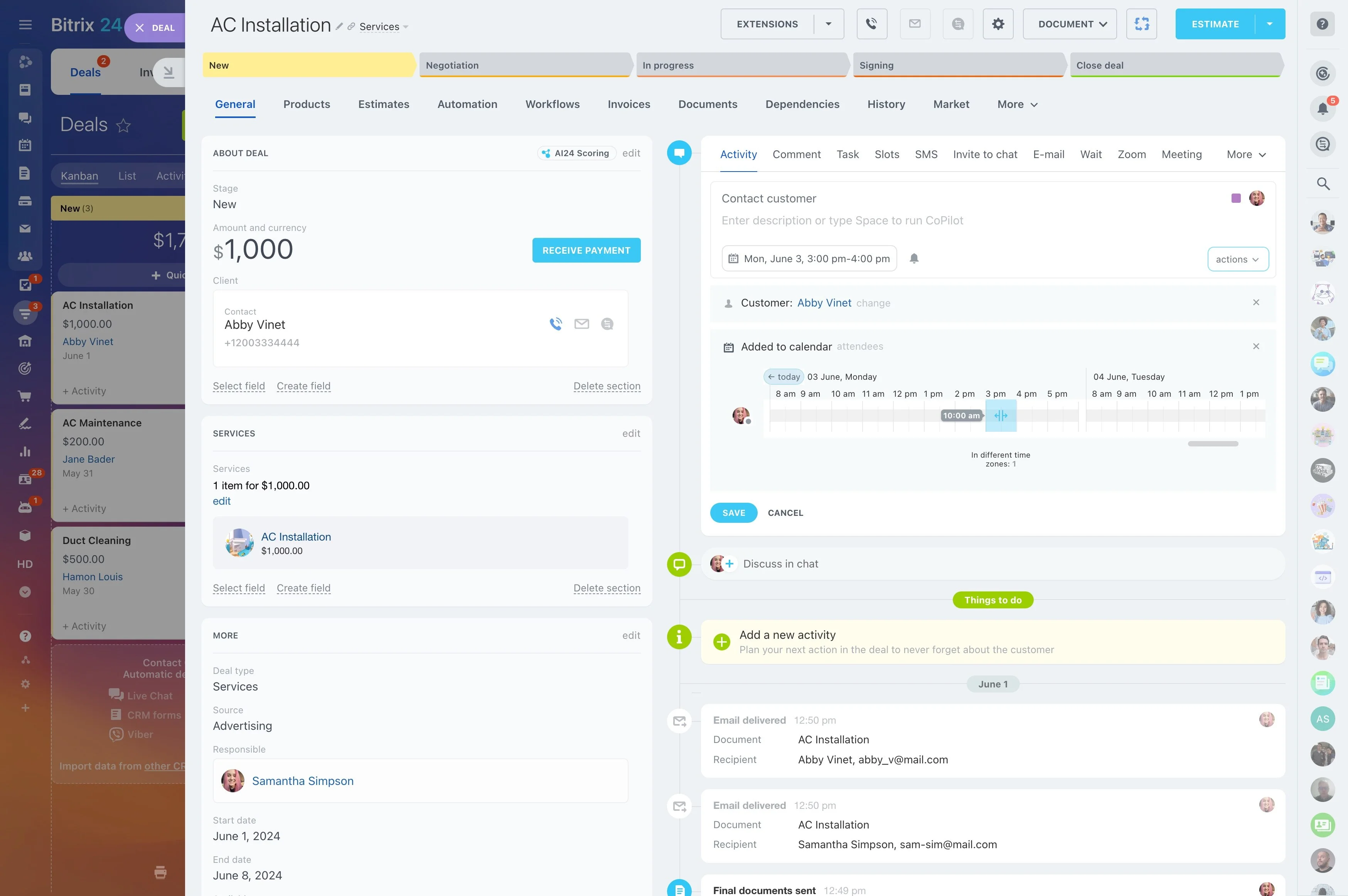
Google Sheets can cover basic customer tracking early on—until the spreadsheet becomes the place where deals, follow-ups, and account context live. Then it gets harder to answer simple questions with confidence: who owns this opportunity, what stage is it really in, and what’s the next action?
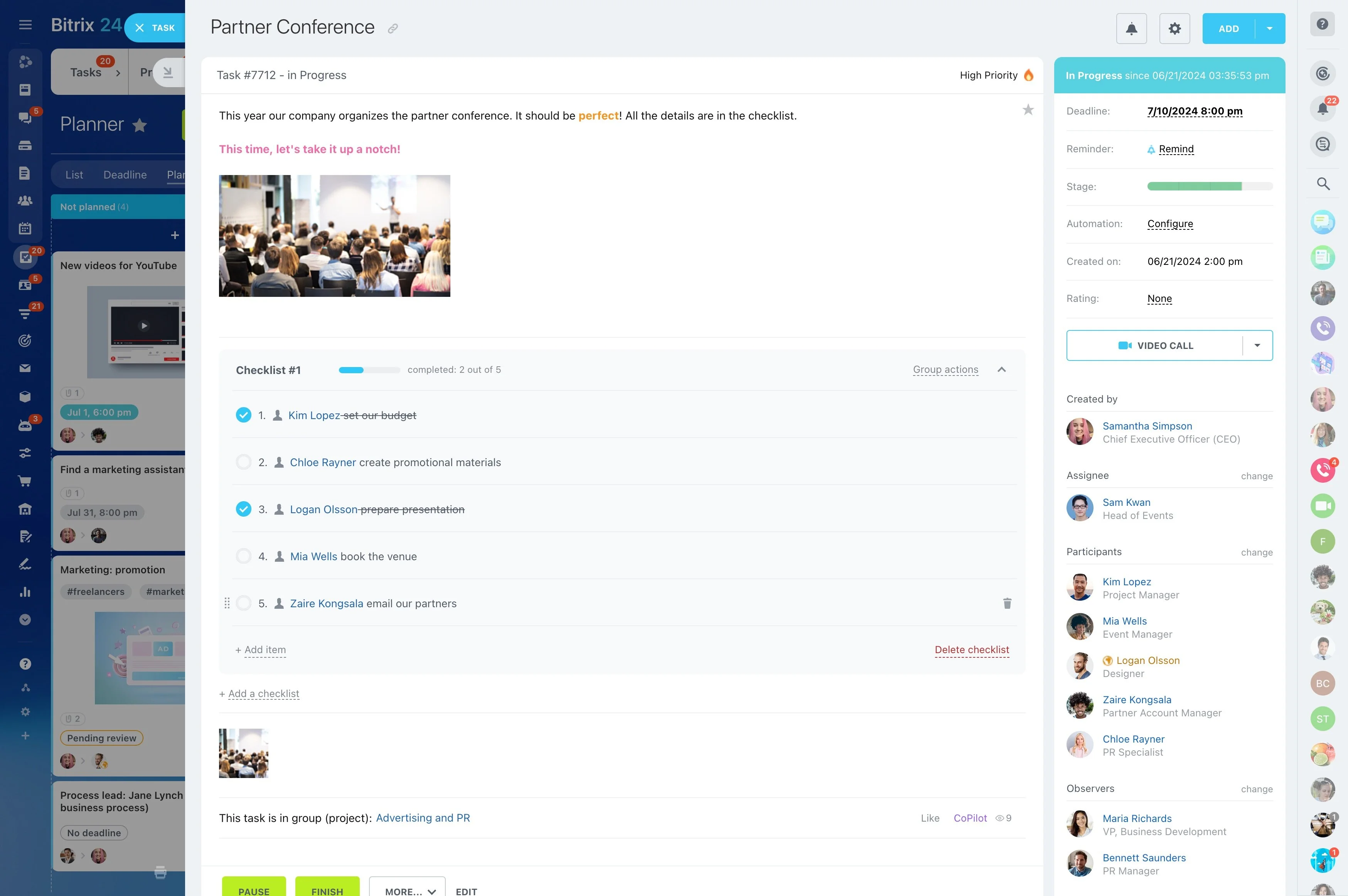
This page walks through how to migrate from a “Google Sheets CRM” to a structured CRM workflow. You’ll plan what you’re moving, map columns to CRM fields, clean data before import, test with real pipeline scenarios, train the team on the new daily rhythm, and run a controlled cutover so the CRM becomes the source of truth.
- Replace rows with customer and deal records
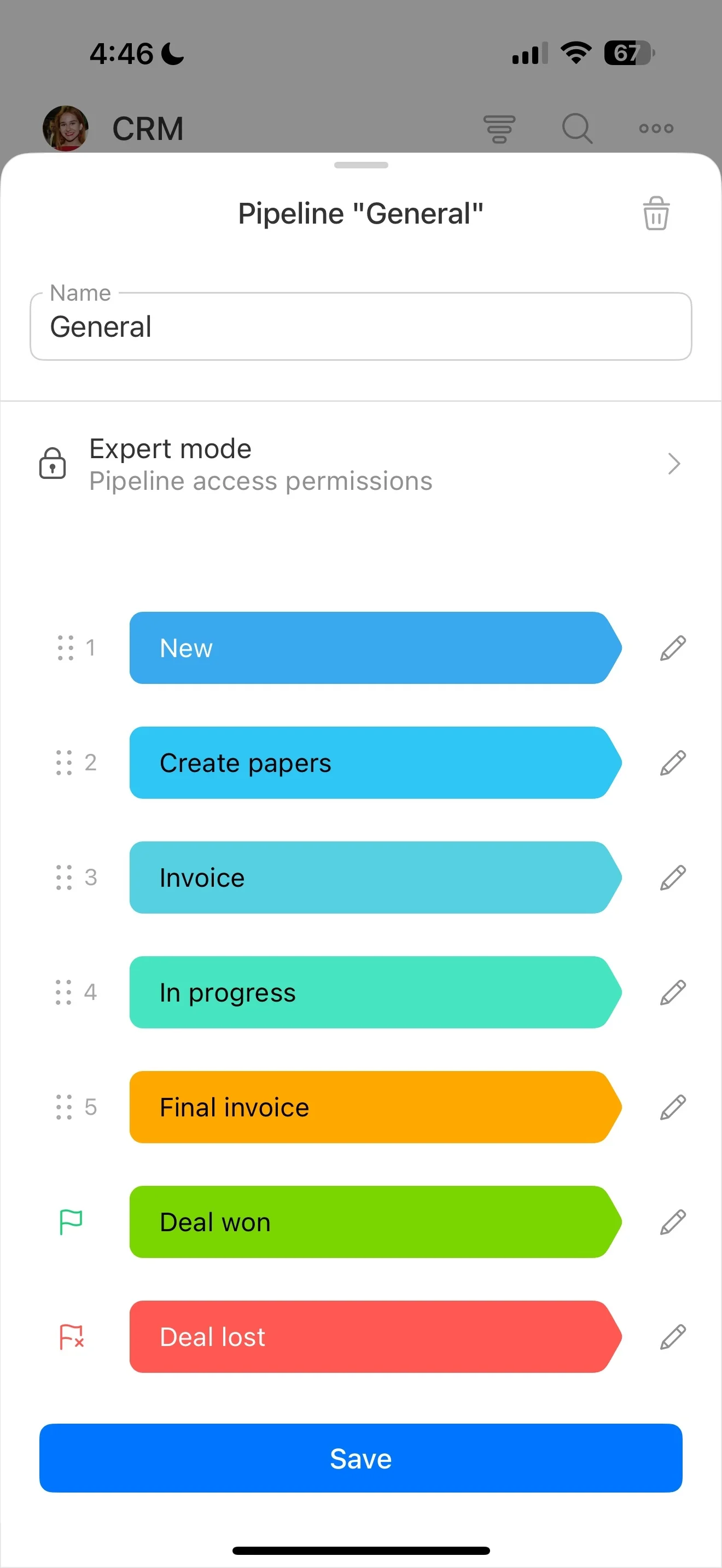
- Standardize stages, statuses, and required fields
- Keep ownership and activity history tied to each opportunity
Bitrix24 vs Google Sheets for CRM work
Google Sheets is strong for ad-hoc lists, quick sharing, and lightweight tracking while the process is still being defined. But a spreadsheet pipeline depends on manual discipline to keep stages, ownership, and next steps consistent.
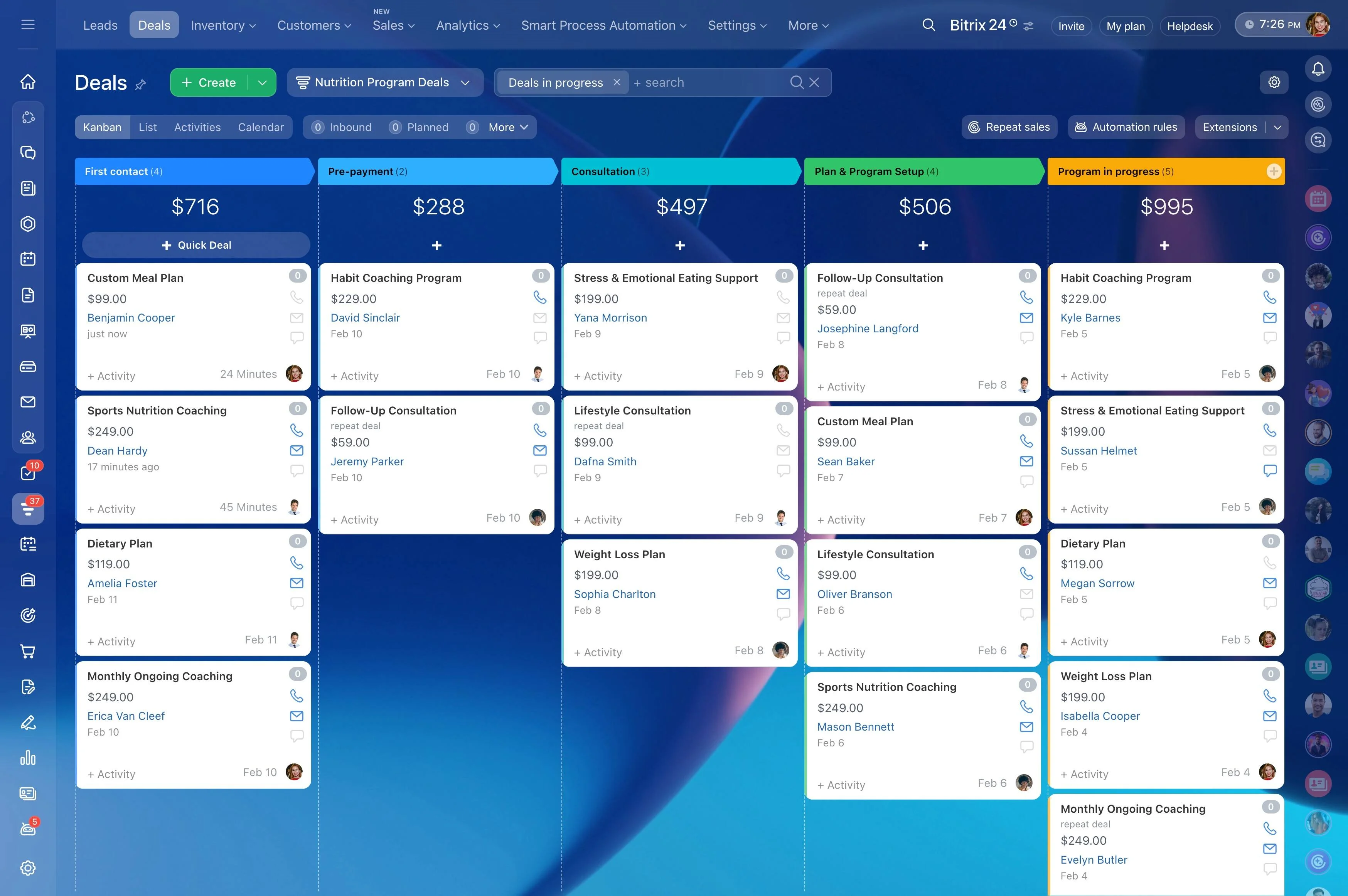
Bitrix24 is built around structured CRM records (leads, deals, contacts) and defined stages, so the pipeline is managed through the record lifecycle instead of conventions in cells. If you need repeatable execution and reliable rollups by stage and owner, a CRM is the better long-term replacement for a “home-built” Sheets setup.
Test import with real pipeline scenarios
Run a small test import from a representative export before moving everything. Validation should be done by the people who manage deals daily, using the scenarios they care about.
- Check top accounts, active deals, and recent inquiries
- Confirm filtering by owner and stage works as expected
- Compare stage totals against what the team expects
- Edit a record and move a stage to confirm updates behave correctly
Identify what your Sheet is tracking
Most “Google Sheets CRMs” quietly combine multiple workflows in one table. Before migrating, list what the sheet is used for today and separate it into CRM objects you can manage and report on consistently.
- Contacts vs. companies (people and the accounts they belong to)
- Leads vs. deals (inquiries vs. qualified opportunities)
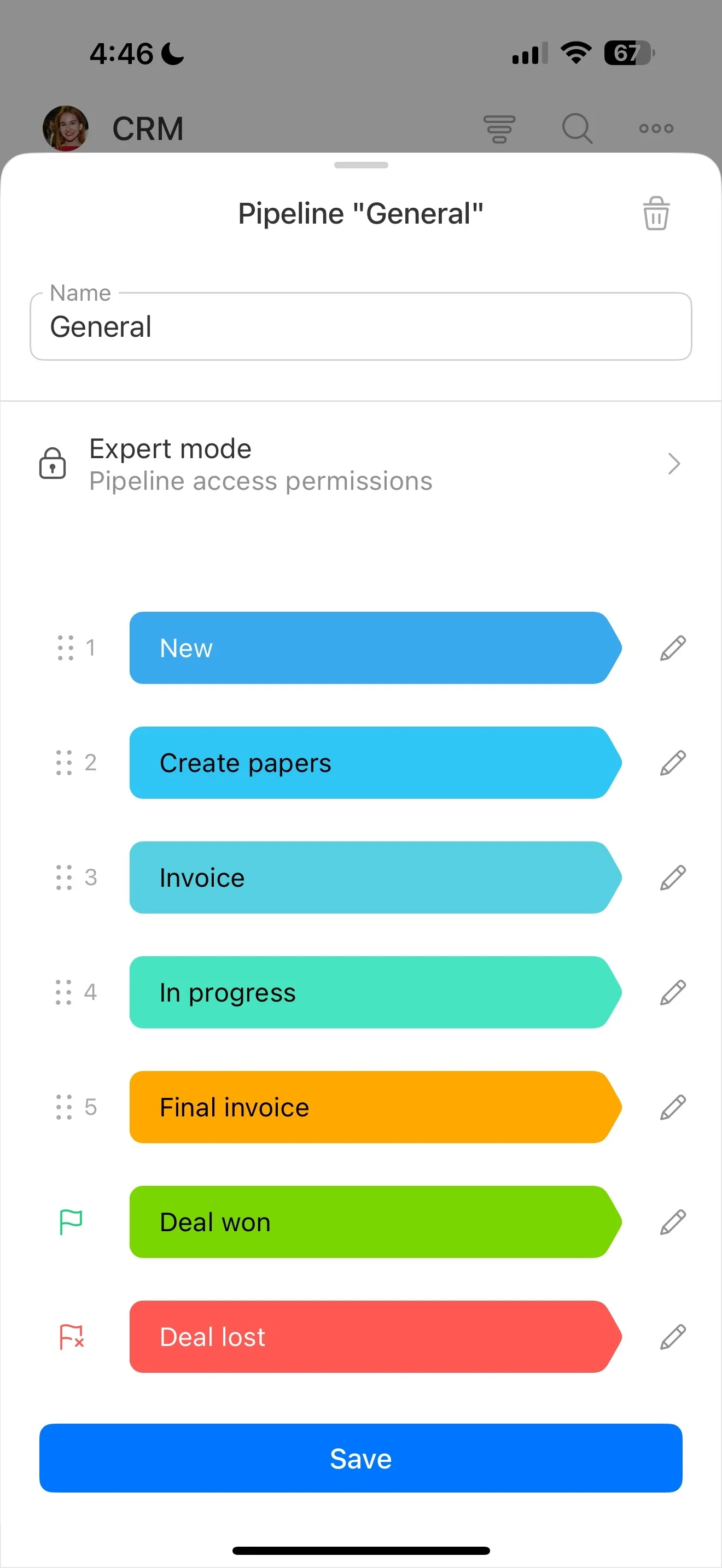
- Pipeline stages (the steps you actually use)
- Activities (calls, emails, meetings, next steps with an owner and due date)
Map columns to CRM fields and rules
Field mapping is where a spreadsheet migration gets reliable. For each column, decide whether it becomes a CRM field, a stage value, a tag/category, or something you stop tracking because it doesn’t support sales decisions.
- Standardize naming and formats (currency, dates, phone)
- Convert free-text statuses into controlled stage values
- Split “combo” columns (e.g., Contact info) into separate fields
- Agree on required fields at key points (qualification, proposal)
Clean the data before you import
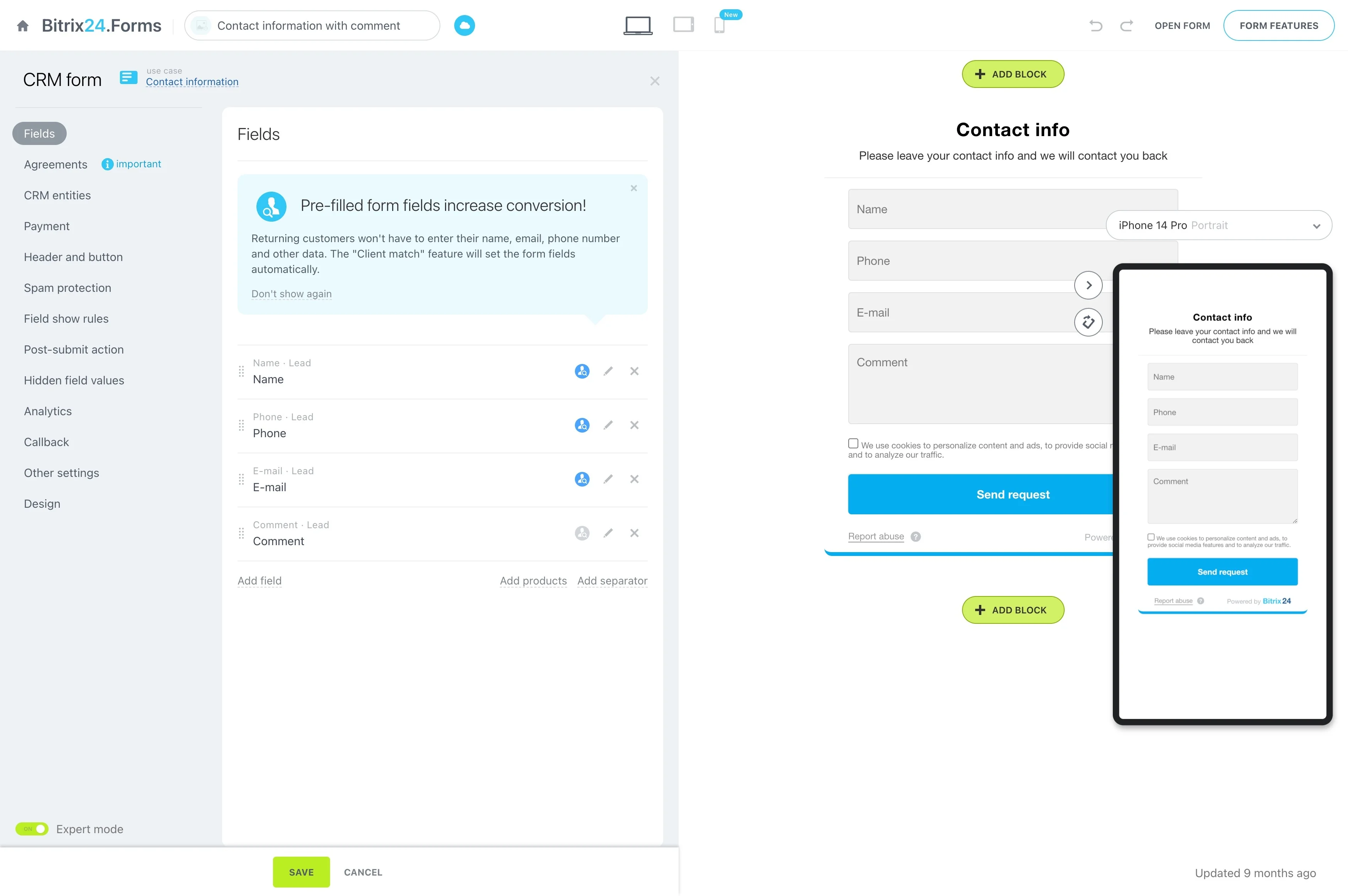
Importing messy sheet data creates mistrust on day one. Do a cleanup pass first so records are searchable, consistent, and assigned to the right owners from the start.
- Remove duplicates and stale rows; mark items to archive
- Normalize emails, phone numbers, and addresses
- Resolve missing owners for deals and accounts
- Make sure every open deal fits one stage
Train on daily actions, not menus
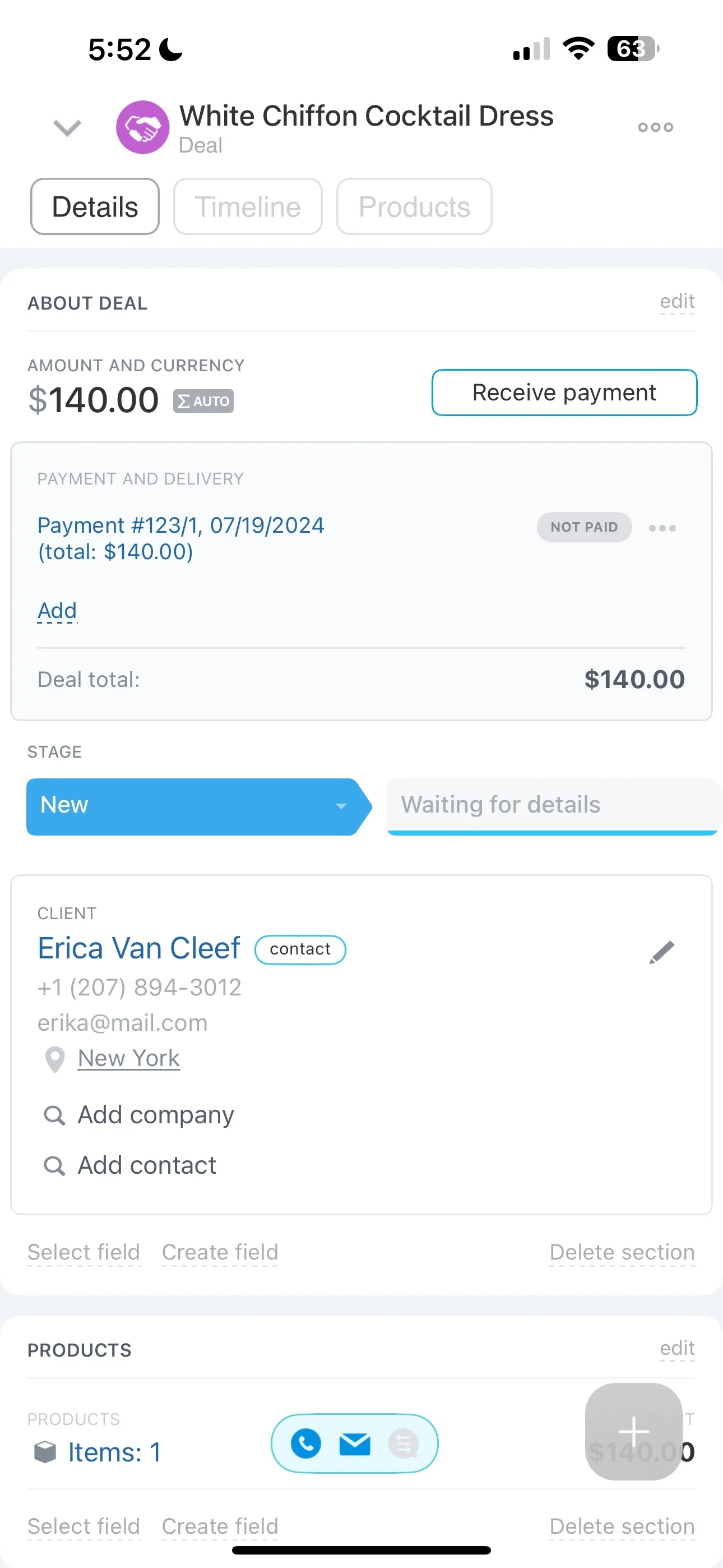
To prevent a slide back to the spreadsheet, train around outcomes: where new work appears, how ownership is set, what “done” means for a stage, and how next steps are captured on the record.
- Reps: update deals, move stages, log next actions and notes
- Managers: review by stage/owner and spot missing key fields
- Admins: maintain fields/stages and keep import templates consistent
Cutover checklist to retire the Sheet
A clear cutover avoids split reporting where some updates happen in Sheets and others in the CRM. Set a timeline and rules so everyone knows when the CRM becomes the only place to manage opportunities.
- Schedule a cutoff and set the Sheet to read-only after that time
- Export the final dataset, import, and complete validation checks
- If you must run in parallel, keep it short and define where updates are allowed
- Archive the Sheet for reference, but stop day-to-day use