Cloud-Based CRM for Distributed Teams: Access Is Only the Starting Point


Cloud CRM gives distributed teams something genuinely hard to achieve otherwise: one shared view of every customer, updated in real time, accessible to whoever needs it. Sales, support, and operations working from the same record instead of trading emails and maintaining private spreadsheets.
But most teams don't get there. They migrate the system and leave the habits unchanged. Reps keep spreadsheets. Managers chase updates in chat. The CRM becomes something people update after the fact rather than work from.
Access is only the starting point. The shared view holds only when permissions reflect how work actually flows and someone owns the data standards.
That's what this article covers.
What a cloud-based CRM for distributed teams actually means
A cloud-based CRM is not just CRM software hosted offsite. In practice, it’s a shared system of record that gives multiple teams one trusted view of customer data, activities, ownership, and next actions.
For distributed teams, that requires four things from the start:
- Shared records — People are not working from local copies or spreadsheets
- Role-based access — Users see what they need without opening everything to everyone
- Mobile usability — Field and remote staff can act quickly, not just read data
- Centralized governance — Someone defines and maintains the rules
That is very different from simple remote access.
Remote access says, "you can log in from home, a branch office, or your phone." A cloud-based CRM built for distributed collaboration says, "everyone works from the same account history, follows the same ownership rules, and updates the same system in real time."
The scope usually goes beyond sales. Different functions need different visibility:
- Service teams need issue history
- Operations need fulfillment status and account health
- IT needs security, integrations, and auditability
- Leadership needs confidence that reports reflect actual work, not disconnected local processes
In other words: the value of cloud CRM is not where the software runs. It is whether teams can make fast, safe decisions from the same customer context.

Why the process breaks after migration to the cloud
Migration often fails because the system changes but the habits don't. Reps still keep their own spreadsheets. Managers still ask for updates in chat. Customer threads stay trapped in personal inboxes. Regional teams build local workarounds because the shared system feels slow or unclear.
Officially the CRM is the source of truth. In practice the truth is scattered across inboxes, notes apps, exported CSV files, and team-specific trackers. Once that happens, adoption drops fast, and the consequences are real: 37% of CRM users report losing revenue directly as a result of poor data quality.
Why it happens: Structural causes
- Weak permission models — Either block work or expose too much, forcing teams to request access constantly or patch holes with unauthorized spreadsheets
- Inconsistent data standards — One team logs "Qualified," another logs "Sales Accepted," and a third leaves the field blank, making reports unreliable
- Poor mobile workflows — Basic updates take too long on the go, so people wait until later and details get lost
- Unclear ownership rules — Confusion about who should update what, leading to duplicated or missed actions
The business impact
Lack of cross-functional coordination (approximately 50%) is the top cause of CRM failures, along with poor usability, inefficient workflows, dirty data, and limited training. When adoption fails, it hits business performance directly:
- Slower response times (people hunt for history before replying)
- Lower trust in data (nobody believes the CRM is complete)
- Higher compliance risk (access and activity are not consistently controlled)
So when teams say "the cloud CRM didn't fix coordination," the real issue is usually process design, not hosting.
Remote CRM Workflow Blueprint: Roles, Rules, and Rituals
Enter your email address to get a comprehensive, step-by-step guide

Step 1: Map the shared context every team needs
Start by defining the shared context the business actually needs. (Shared context means the customer information, activity history, and account signals every relevant team should be able to see in one place to do their work correctly.)
Don’t begin with every possible field in the CRM. Begin with the moments where teams depend on each other. For example: a lead becomes a qualified opportunity, an account moves into onboarding, a renewal is at risk, or a support issue threatens an upsell. In each case, ask what another team must see immediately without requesting an update.
Core data every team should see
Usually the cross-functional must-haves include:
- Account and contact basics (name, location, key relationships)
- Current owner and backup owner for continuity
- Recent meetings, calls, emails, and tasks logged in the system
- Open opportunities, tickets, or orders
- Key dates such as renewal, onboarding milestones, or SLA deadlines
- Risk flags, escalation status, or account health signals
Then separate that from team-specific views.
Sales may need qualification details and pipeline stage visibility. Support may need case severity, resolution notes, and customer history. Finance may need billing status and contract terms.
If every team sees every field on every screen, the CRM gets cluttered fast and users stop updating it carefully.
Ownership and handoff rules
Ownership rules matter just as much as field design. Define who owns the account, who owns the opportunity or case, who can edit notes, who creates follow-up tasks, and what happens during a handoff.
If ownership is vague, updates pile up in the wrong places, and nobody trusts that the next step is covered.
|
Object |
What should be shared |
Who typically owns it |
|---|---|---|
|
Account |
Core details, status, key relationships, account health |
Account manager or regional owner |
|
Contact |
Role, contact info, communication history |
Team interacting most directly |
|
Opportunity |
Stage, value, expected close date, blockers |
Sales owner |
|
Ticket/Case |
Issue status, severity, next action, resolution notes |
Support owner |
|
Task/Handoff |
Due date, assigned person, completion status |
Person responsible for next action |
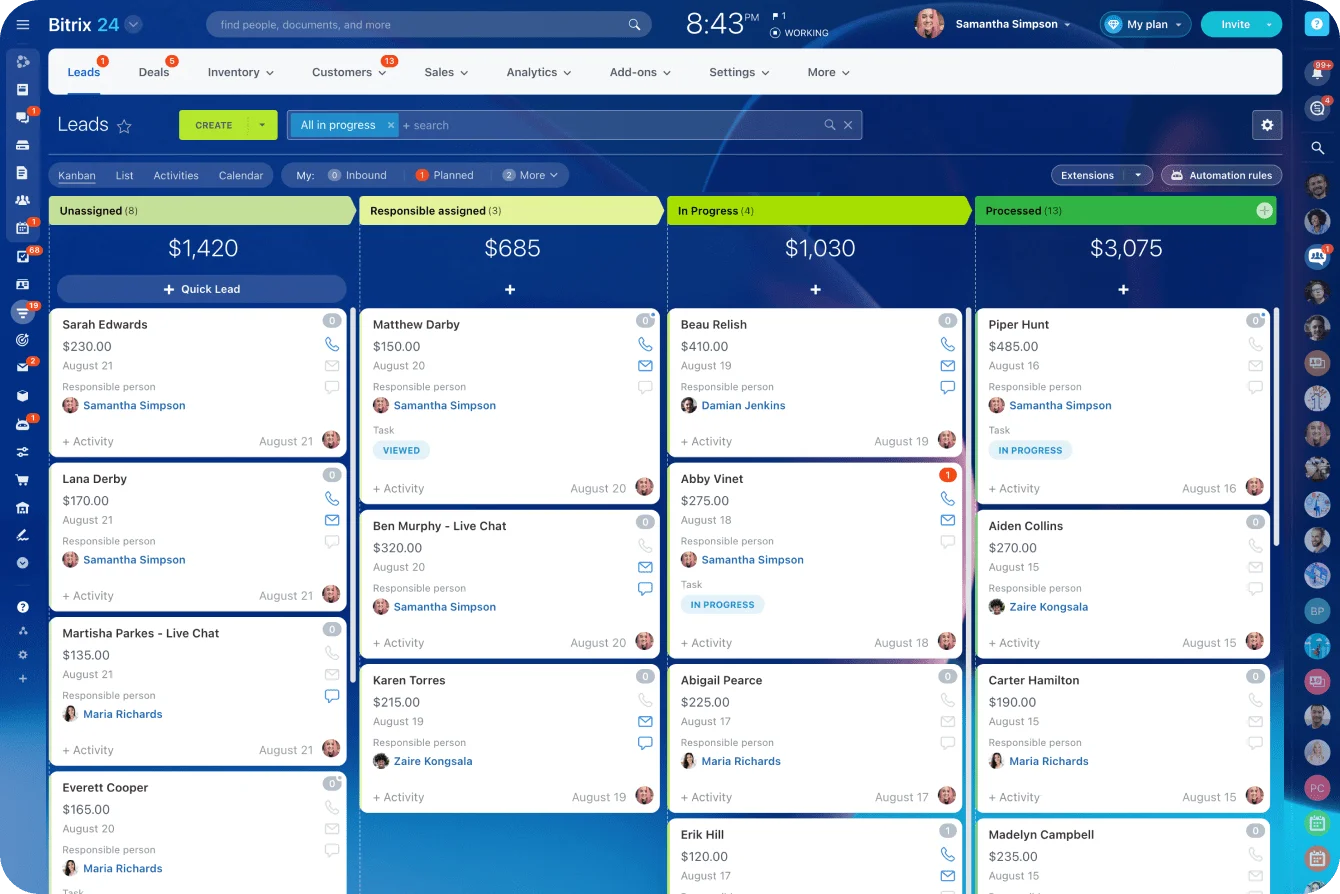
Summary: Define one shared customer picture first, then layer team-specific detail on top. This keeps records usable instead of overloaded. Tools like Bitrix24's CRM let you build this with field-level permissions, so you can show different views to different roles without duplicating data.
Step 2: Design permissions around workflows, not job titles
Many CRM rollouts set permissions by org chart alone: sales can see X, support can see Y, managers can see everything.
That sounds tidy, sure, but it breaks in real work. People don’t perform tasks based only on titles. They qualify leads, approve discounts, investigate escalations, and cover accounts temporarily.
A better model starts with workflows.
List the tasks that matter, then define what access each task needs. Someone qualifying inbound leads may need to create contacts, update qualification fields, and view prior interactions without seeing deal terms. A discount approver may need visibility into deal context but not compensation data from other regions. A support lead handling escalations may need temporary access to account history across regions to understand the full relationship.
This approach keeps sensitive information contained without slowing handoffs. The goal is not maximum restriction. It is appropriate visibility: people should see enough context to act fast, but not more than their role in the process requires.
Build exception handling upfront
Exception handling is where many teams get stuck, so design it upfront. Common cases include:
- Contractors who need limited, time-bound access to specific accounts
- Regional teams that should see local accounts but not competitive intel from other regions
- Managers who need broader reporting visibility than edit rights
- Temporary project teams that need access during launches, migrations, or key account reviews
Keep the model understandable. If permissions become so complex that admins cannot explain them, they will drift over time and create hidden risk.
Practical rule: Map access to actions, define exceptions separately, and review permission changes on a schedule instead of handling them ad hoc. Document the "why" for each permission so new team members understand the intent.

Step 3: Build for mobile response and daily execution
Research shows that 65% of salespeople using mobile CRM meet their sales quotas, compared to only 22% who don't. The difference is not about having a phone app. It is about whether the workflows are built for the way people actually work in the field.
Design for speed, not features
Start with the actions people must complete fast. In most teams, that means:
- Updating a record right after a call
- Checking recent history before replying to a customer
- Logging a note with context (not just a blank field)
- Creating a follow-up task
- Escalating an issue to the right person
If those actions take too many taps, depend on desktop-only layouts, or ask for unnecessary fields, users delay the work.
That’s where CRM quality drops. Notes get entered hours later. Follow-ups are forgotten. Duplicate tasks appear because people are not sure whether anything was logged. Mobile design is not cosmetic here. It directly affects response speed and record accuracy.
Practical mobile design rules
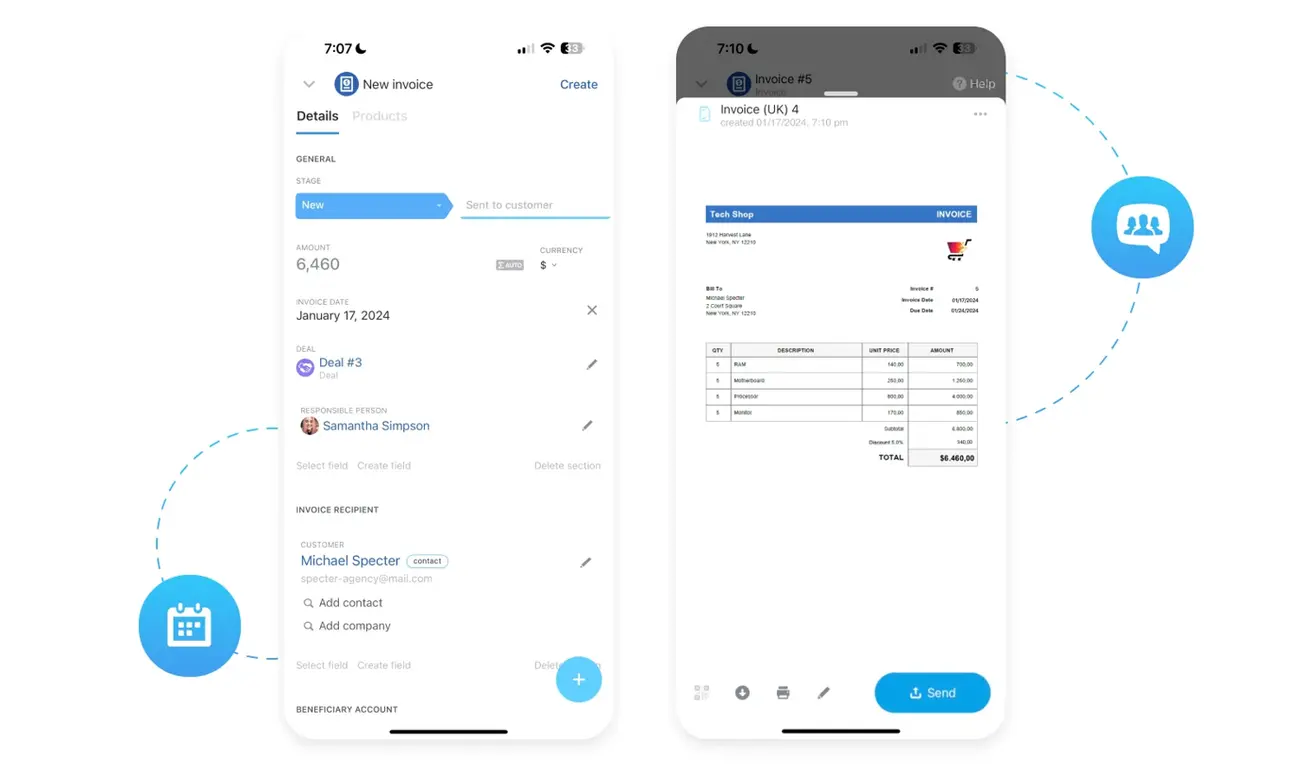
- Simplify page layouts for phone screens (hide nice-to-have fields)
- Use short forms for quick logging (3–5 fields, not 20)
- Make recent activity easy to scan at a glance
- Place next-step actions at the top so the most urgent task is visible first
- Reduce duplicate entry across objects (if you already entered an email on the contact, do not ask for it again on the account)
Then test in real scenarios, not just in admin preview mode.
Can a field rep update an account in under a minute after a visit? Can a manager approve something from a phone without pinching through five screens? What happens when the connection drops? Do notifications help people act, or just train them to ignore alerts?
Mobile-enabled CRM systems reduce the friction that causes distributed teams to create workarounds.
Step 4: Put governance and data rules in place early
Governance sounds heavy, but in CRM it simply means deciding who sets the rules, who changes them, and how data stays usable over time. If you wait until after rollout, teams will already be working around inconsistent fields, duplicate records, and unclear lifecycle stages.
Start with a few basic standards that every team follows:
- Naming conventions for accounts and contacts (e.g., "Company Name - City" or "FirstName LastName - Title")
- Clear field definitions so "customer status" means the same thing everywhere
- Standardized lifecycle stages with entry and exit criteria (e.g., Lead → Qualified → Opportunity → Closed Won/Lost)
- Activity logging expectations (e.g., all calls logged within 2 hours, meetings created in advance, customer emails added to the record)
Then assign actual governance roles — explicit responsibilities, even in small teams:
- Admin approver — Approves system configuration changes
- Data quality reviewer — Reviews data quality on a schedule (monthly is typical)
- User support owner — Owns user support and issue triage
- Compliance lead — Manages security, retention, and regulatory requirements
Governance areas beyond data entry
Policies also need to cover the less visible parts of the system:
- Integrations: Who can connect new tools and what data can sync?
- Audit trails: What changes must be traceable and for how long?
- Retention: How long activity, attachments, and customer records are kept?
- Compliance-sensitive information: Where restricted data can live and who can access it (e.g., health info, financial data, GDPR-protected fields)?
Good governance doesn’t slow the business down, it prevents confusion from becoming permanent system design. Bitrix24 includes built-in audit trails, field-level permissions, and role-based access controls to make governance easier to implement and monitor.
Step 5: Improve reliability with adoption metrics, automation, and support
Once the CRM is live, reliability depends on what you measure, what you automate, and how you support users as the team grows. If you only watch login counts, you will miss whether the system is actually helping distributed work happen cleanly.
Track operational execution, not just activity
Useful metrics include:
- First-response time (how fast do teams reply after a customer interaction?)
- Handoff delays between teams (where do things get stuck?)
- Required-field completeness (what % of records have necessary data?)
- Mobile usage for key actions (are field teams actually updating on the go?)
- Time between customer interaction and CRM update (is the record fresh or days old?)
These metrics reveal where the process is breaking.
If mobile usage is low, the workflow may be too cumbersome. If handoff delays rise in one region, ownership rules may be unclear. If record completeness drops after hiring, onboarding is probably weak.
Use automation to support visible process steps
Task automation can help, but only when it supports visible process steps. Good uses include:
- Routing leads to the right queue based on geography or product interest
- Sending reminders for overdue follow-ups before they slip
- Alerting managers when cases breach defined thresholds (e.g., SLA approaching)
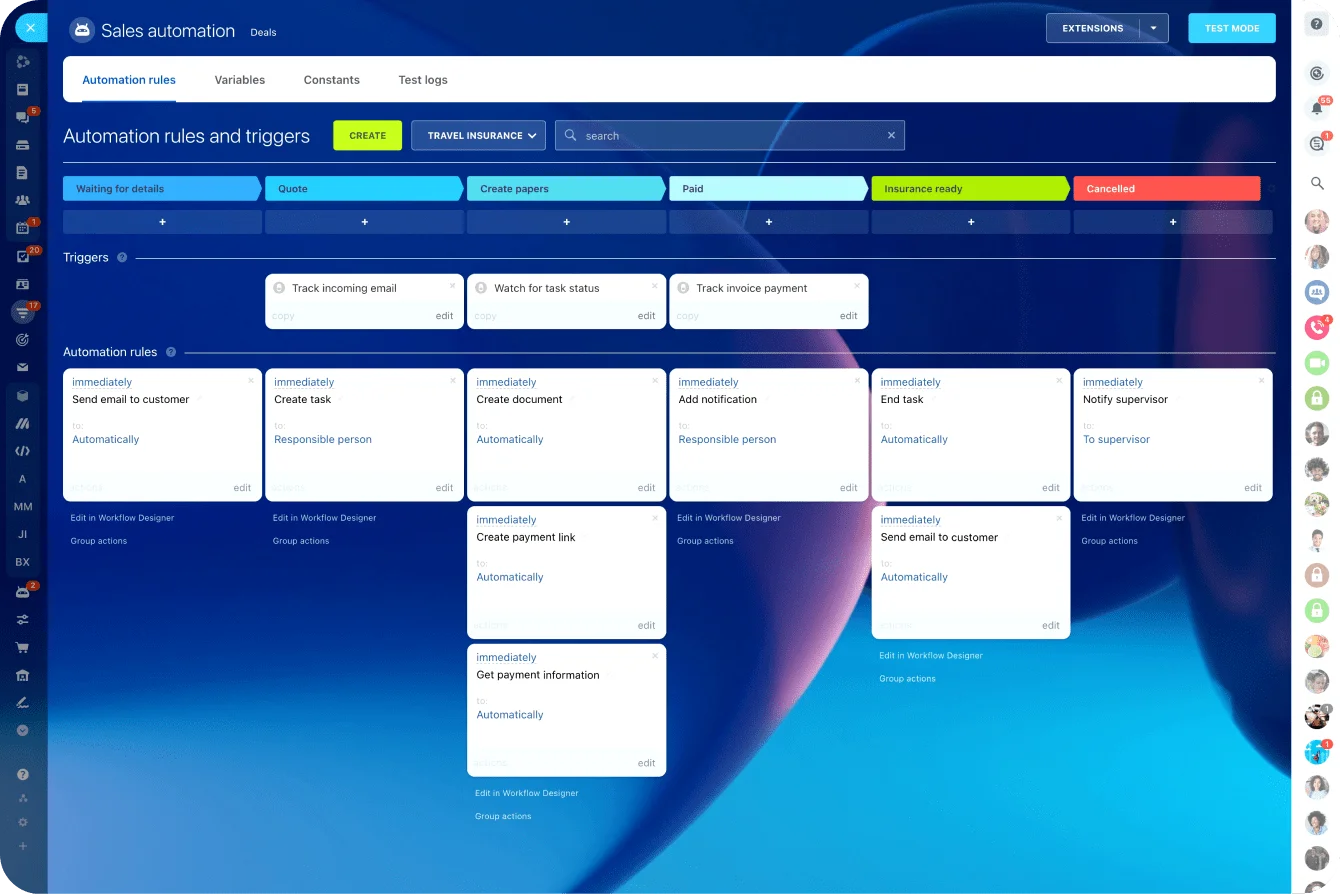
Bad uses are the ones that bury logic so deeply that teams stop understanding how work gets assigned.
Use this filter before adding automation: Does it reduce manual delay, and can users still see what happened? If not, it may create more support work than it saves.
Plan for growth, not just launch
Growing teams need:
- Onboarding for new hires (use a checklist, not just verbal handoff)
- Simple documentation for common tasks (keep it 1–2 pages, not 50)
- Recurring reviews to adjust layouts, permissions, and workflows by region or function
A CRM for 20 users usually can’t be run the same way at 200. Plan for that now.
|
Reliability area |
What to monitor |
What to do if it slips |
|---|---|---|
|
Adoption |
Record updates, mobile action rates, task completion |
Simplify workflows and retrain targeted groups |
|
Response speed |
Lead follow-up time, case response time, handoff lag |
Adjust routing rules and ownership coverage |
|
Data quality |
Required-field completeness, duplicates, stale records |
Run audits and tighten data-entry rules |
|
System support |
Admin backlog, recurring user issues, change requests |
Add admin capacity and formal review cycles |
Common mistakes to avoid at scale
1. Copying old processes into a new interface
The most common mistake is copying old processes into a cloud interface and calling it modernization. If teams still rely on private spreadsheets, inbox ownership, and informal handoffs, the cloud version is just a more expensive place to keep fragmented work.
2. Overcomplicated permissions
Teams try to solve every edge case upfront and end up with a model nobody can maintain. A real example: one company with three regional offices built 27 permission roles in the first week, then spent six months trying to figure out what each one did. Simple and documented beats complex and comprehensive.
3. Poor mobile design
If remote and field users cannot update records quickly, they will postpone updates or skip them, leading to stale data and duplicate work across regions.
4. Weak governance ownership
Data remains usable for a few months, then drifts into inconsistency. Once inconsistency becomes visible, fixing it is 10 times harder than preventing it.
Scaling challenges to address now
As the business scales, four issues matter most:
- Multi-team consistency: Common standards must hold across regions and functions
- Integration reliability: Synced tools need monitoring, not just setup
- Admin capacity: More users and workflows create more change requests and support load
- Trust in the data: Once users stop believing records are current, adoption falls quickly
What actually makes it work
The technology is rarely what fails. Cloud CRM implementations typically break on coordination: unclear ownership, permissions that don't match how work actually flows, mobile workflows nobody uses, and data standards that drift the moment nobody's watching.
The five steps in this article aren't complicated. They're just the things most teams deprioritize in favor of getting the system live.
Get them right upfront and the CRM becomes something people actually work from, not around.
Make cloud CRM work for every team
Bitrix24 unifies CRM, tasks, permissions, and mobile workflows so distributed teams act from clean, trusted customer data.
Get Started NowFAQ
How do you support users with low connectivity?
Prioritize offline-friendly mobile workflows for critical actions, reduce required fields on the go, and test sync behavior in weak-signal conditions before rollout. Some CRMs support offline mode; others sync when connectivity returns. Test this scenario before launch in areas where your team works.
How long does cleanup take before rollout?
It depends on data quality, but most teams need several weeks to standardize records, remove duplicates, define fields, and confirm ownership rules. Rushing this step usually creates rework after launch. Plan for 4–8 weeks if you have years of messy data; 1–2 weeks if you are starting clean.
Which tools matter most for auditability?
Change history, field-level tracking for sensitive data, permission logs, integration logs, and documented approval workflows are usually the essentials. Bitrix24 includes native audit trails that log every record change, who made it, and when.
Should shared inboxes sync to the CRM?
Usually, yes, if customer communication needs to be visible across teams. But sync rules should be selective so the CRM captures relevant history without flooding records with noise. Set filters so only customer-facing emails sync, not internal team messages.